At a glance
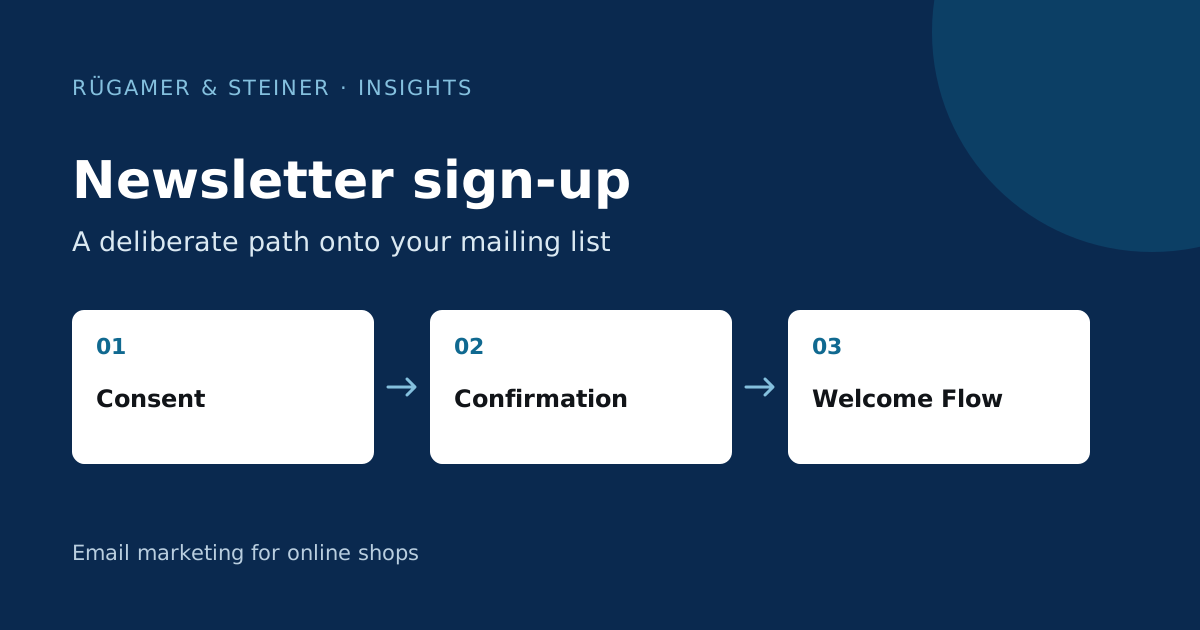
Form display, profile creation, list subscription and dispatch are separate states. In the case of double opt-in, confirmation is part of the intended process. Plan the text and language for all steps, collect only the necessary information, and test new, existing and unsubscribed contacts. A DOI setup does not constitute blanket proof for every legal issue.
The form needs to offer a clear benefit
Before the user enters their details, explain what content they will receive. Product recommendations, promotional offers and a specialist newsletter can create different expectations. If you specify a frequency, it must match the actual plan. A general phrase such as ‘Stay up to date’ leaves more to the imagination than ‘New selection guides for your shop once a month’.
A sample example: An agency offers a monthly newsletter for shop managers featuring practical Klaviyo checks and new guides. The landing page lists this content, shows a specific example and links to the relevant privacy notice. The footer form uses the same promise in abbreviated form. This ensures the context remains clear even outside the landing page. A download or discount may only be advertised if it is subsequently made available.
Check the advert and integration first
The Klaviyo Guide to Sign-up Forms describes the requirements for setup, publication and display. Check that the intended form appears in the right place on your live website. For embedded forms, review the surrounding page too; for pop-ups, make the display and exclusion rules clear.
Test narrow smartphone layouts and keyboard navigation. Field labels must remain clear after entry. Error messages should appear beside the relevant field and explain what is needed. Check sticky elements, cookie banners and other pop-ups for overlap. A sign-up form hidden behind another element is difficult to use even when Klaviyo is configured correctly.
What happens with double opt-in?
With double opt-in, the person confirms their registration via the designated confirmation message. Joining the list and the subsequent welcome flow only take place in the designated technical process after this confirmation. Klaviyo describes settings and steps in the Guide to the double opt-in process. Please check the specific list and the registration method used.
The success message following the form should therefore clearly lead to the next step, such as checking one’s inbox. The confirmation page should explain that the registration is complete and what message will follow next. Avoid success messages that promise a newsletter dispatch has already begun before confirmation. Furthermore, a technically functional confirmation process does not replace the need to document the specific commitment, the use of data and the corresponding legal basis for sending the newsletter.
Specify target list, language and properties
For each form, note the target list and the language displayed. A German registration form with an English confirmation may confuse visitors. Check all text used, including error messages, confirmation emails, confirmation pages and welcome emails. A saved language field should reflect the actual path taken and not be derived solely from the last page visited by chance.
First, gather the details required for the promised content. First names or interests may enhance the editorial content, but should serve a clear purpose. If an optional field is left blank, the process must still function correctly. Record which form a profile originated from and which version of the offer was displayed. Sensitive or unnecessary information has no place in a simple newsletter sign-up form.
Test existing and unsubscribed contacts
A new address is only part of the verification process. Additionally, check a contact who has already registered and a contact who has previously unsubscribed. The visible message should be clear in each case. Check in the profile which status change actually occurs and whether the intended confirmation process is followed. A profile that already exists is not automatically a current subscriber.
Also test repeated entry of an address and a second click on the confirmation link. The process should not generate a confusing series of identical welcomes. If several systems synchronise profiles, check their statuses again after unsubscribing. This reveals whether an old property or integration accidentally overwrites the documented preference.
Complete the registration process
- Enter a new test address in the published form.
- Read the success message and receive the confirmation message.
- Check the target list and flow status before confirmation.
- Open the confirmation link and then check that you have been added to the mailing list and received the welcome email.
- Repeat with a missing optional field, an existing address and a deactivated profile.
- Unsubscribe and check whether subsequent marketing messages cease.
A targeted test email sent from the editor bypasses parts of this process. It therefore only captures the content received. Make a note of the form path, time, expected statuses and actual progress. Check all links on smartphones and desktops, including the privacy policy and unsubscribe links.
Measuring form success with an appropriate denominator
Distinguish between form views, entries, completed confirmations and actually reachable subscribers. More entries do not automatically mean more confirmed contacts. If many visitors do not complete the confirmation, first check delivery, clarity and the transition between steps. A longer form description is not automatically the solution to a technical delivery error.
Compare form placements using comparable visitor groups. A footer form serves different situations from a pop-up shown after a product view. Keep display timing and content clear during the test. Check the whole journey to see whether an effective sign-up prompt leads smoothly into newsletter communication.
Sources and further documentation
Product documentation and primary sources relating to the steps described. Editorial source date: 5 October 2026.