At a glance
Google Postmaster provides diagnostic data for messages sent to personal Gmail accounts. Check the relevant domain and proof of ownership. Analyse time trends alongside send volumes, target audiences and changes. Missing data does not indicate quality; low volumes or other conditions may limit the display.
What does Google Search Console show?
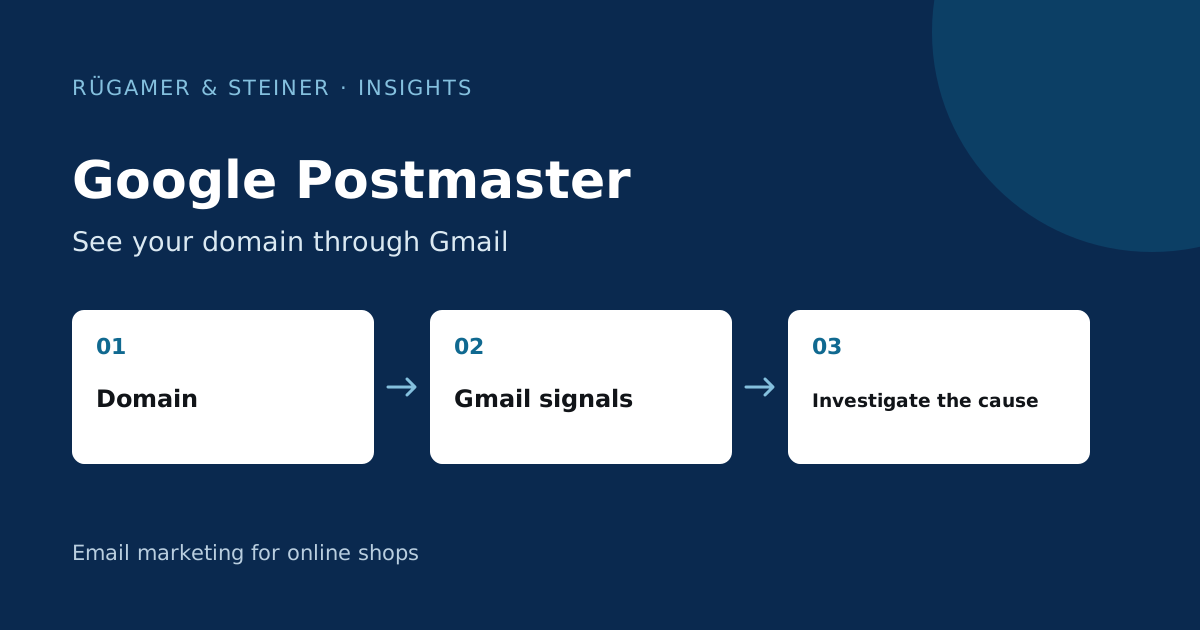
Postmaster Tools helps senders diagnose their mail delivery to personal Gmail accounts. Google describes the setup in the official setup guide. The tool does not provide a complete overview of all recipients for your shop. An issue with another email provider cannot be ruled out simply because Gmail data shows no problems.
Use the metrics as a supplementary perspective on Klaviyo: does a notable trend coincide with an increase in mailings, a different recipient group or a change of domain? A single curve rarely answers the question of cause. Place a simple timeline alongside it, showing campaigns, list changes and technical interventions. This creates a context that the team can review.
Verify the correct domain
First, check a test email you have received to see which DKIM or Return-Path domain is actually being used. Add the appropriate domain to Postmaster and verify ownership using the DNS values specified by Google. Coordinate this change with the relevant domain administrator. A visible sender address alone is not always the domain on which the diagnostic values are based.
After making the DNS entry, check for successful verification in Postmaster. Document the domain, responsibility and date. Where multiple mailing services are used, it must be clear which messages are consolidated into a single view. If support and marketing use the same domain, shared signals may arise. In such cases, ask additional questions about the mailing channels involved, rather than immediately attributing the entire curve to a single newsletter.
Which reporting views should you compare?
The Google FAQ on postmaster and sender requirements explains the diagnostic areas and compliance view. In particular, check the history of spam rates, authentication and delivery errors, as well as the reputation signals available in the account. The exact display may change; please refer to the current descriptions within the tool.
Assess signals collectively. An authentication error requires a different investigation to an increase in spam flags whilst the technical setup remains correct. For a week where anomalies are apparent, collate the recipient sources, sending frequency and message content. Then examine specific mailings and profiles. The practical benefit arises from the link between diagnostic findings and a reproducible cause, not from merely collecting dashboard screenshots.
Why is data sometimes missing?
A verified domain does not necessarily display values immediately in every view. Google highlights prerequisites and limitations for small volumes. You should therefore first check whether the domain matches the actual authentication, whether emails were sent to personal Gmail addresses during the relevant period, and whether there is sufficient analysable activity. An empty section does not constitute evidence of error-free delivery.
Avoid sending extra messages just to populate a dashboard. The audience and reason for contact should remain relevant. At low volumes, also use actual rejections, received headers and feedback. Record ‘no data available’ and explain the limit. This is more accurate than a green status inferred from an empty display.
Investigating an unusual pattern: an illustrative diagnostic exercise
A sample scenario: A brand has previously been sending emails to subscribers who interact regularly. To mark the start of the major season, it expands its target audience to include older contacts. At the same time, spam flags in Postmaster increase. The initial hypothesis is that the recipient group has changed. Examine this group separately, looking at its origin and the visible sign-up promise. The temporal correlation is an indication, but not yet conclusive proof of causation on its own.
Then compare content and frequency. Have older contacts not heard anything for a while? Is the sender familiar and is the unsubscribe option easily accessible? Were there several parallel flows? Document a targeted next step, such as temporarily excluding the group in question and investigating the cause. Do not change the domain, subject line, content and target audience all at the same time; otherwise, it will remain unclear which measure is linked to the subsequent change.
Deriving a specific action from a diagnosis
If you encounter authentication issues, check the DNS and any messages received. If recipient sources are unsuitable, check registration and list maintenance. If there are frequency issues, review the entire contact plan. In the event of delivery errors, collect the specific error code and relevant proof of dispatch. The action taken should correspond to the observed cause and be reviewed by a responsible person.
Define in advance what would constitute a recognisable improvement. This includes a comparable time period and a stable recipient group. A single good day following a change is rarely sufficient. Also check whether other email providers are showing any notable issues at the same time. Google Postmaster makes Gmail easier to monitor; however, the tool is no substitute for cross-provider delivery monitoring.
Set up a short routine for the team
- Regularly reconcile domain verification and actual authentication.
- Link notable time periods to campaigns and changes.
- Explicitly document missing data as data gaps.
- Check specific error codes and test headers as well.
- Each measure must be assigned a responsible person, a reason and a review date.
Do not retain any screenshots containing unnecessary customer data. A clear history with documented changes is often sufficient for collaboration. If a new domain or a different delivery service is introduced, the audit for that data path starts again. This ensures that diagnostics and actual configuration remain linked.
Sources and further documentation
Product documentation and primary sources relating to the steps described. Editorial source date: 5 October 2026.