At a glance
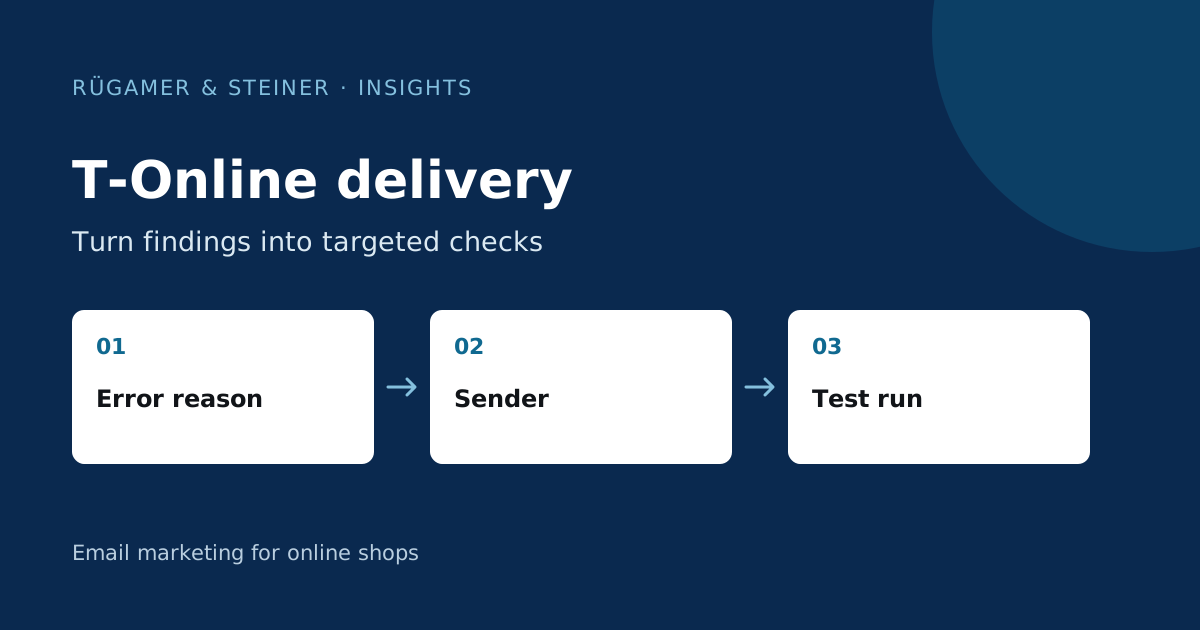
Narrow down the error to the provider, time and delivery method. Then check the T-Online requirements described by Klaviyo and the latest Postmaster documentation. Correct any confirmed findings and carry out controlled testing before launching your next large mailing.
Is it a rejection or a failure to reach the inbox?
A rejected message generates a bounce. An email that has been technically accepted may still end up in the spam folder. A failure to display in the email programme may, in turn, be due to the account or client. You should therefore gather precise observations and treat these situations as distinct cases.
Open the relevant campaign or flow message in Klaviyo and review the bounce activity. Note down the domain, time, reason for the error and frequency. Compare this with other recipient domains in the same mailing. A provider-specific focus suggests a different investigation is required compared to misspelt individual addresses in a new import list.
Check alignment between your sending domain and sender address
Klaviyo’s T-Online guide requires a dedicated sending domain and explains how to verify the sender’s identity. Check your account under Settings → Email → Domains Check which domain has actually been set up and confirmed. Then check the sender address for each affected campaign and flow email.
An address from a third-party freemail provider does not automatically match the shop’s dispatch domain. Make a note of the domains involved and check the authentication as well as the header of a test email. The Guide to SPF, DKIM and DMARC explains the relevant fields. Only use the DNS values for your specific Klaviyo account.
Check double opt-in and the origin of contacts
Klaviyo states that double opt-in is a requirement for T-Online. You should therefore test a new registration using your own test email address: what does the form promise, what confirmation is received, and when does the profile appear with the expected status? A tick box or a manually set list status does not automatically confirm that this entire process has been completed.
You should also investigate whether the problematic addresses originate from a specific source. An old import of unclear origin should be treated differently from recent, verifiably confirmed registrations. The existing sending suppression should not be removed across the board simply to increase the number of reachable contacts.
Match reverse DNS to the actual sending route
Reverse DNS links a sending IP address to a hostname. Klaviyo’s T-Online guide associates the relevant domain check with a dedicated IP. This is not a reason to buy a dedicated IP because of a few bounces. First establish the sending route your account uses and who manages it.
A standard DNS record for your shop domain does not arbitrarily alter the PTR record of a third-party delivery IP. If the issue relates to this area, document the IP address involved and report the case to the relevant platform support team. Keep your self-managed domain configuration separate from the service provider’s infrastructure.
Plan a controlled test run following a correction
Fictitious diagnostic example: The team identifies a flow email with a sender address that differs from the other messages. It corrects this setting specifically, checks the domain configuration and tests the affected route using its own verified test profiles. It then documents acceptance, rejection and visible placement separately.
A successful individual test does not guarantee consistent performance for all recipients. After targeted corrections, monitor for further errors and the sending process. The T-Online Postmaster page describes additional technical and organisational requirements. Avoid repeated, uncontrolled mailings to known invalid addresses.
What information helps the support team?
- Relevant campaign or flow message and send time.
- Specific SMTP error or Klaviyo bounce reason.
- Sender address used and confirmed sending domain.
- Sending route and IP address, where available in the findings.
- Origin and verified registration process of the test profiles.
- Settings already checked and the result of the targeted correction.
Share only the information needed for diagnosis. This gives the relevant support team evidence to investigate, rather than a generic report that T-Online is not working. For other providers, see the comprehensive guide to bounces and spam.
Sources and further documentation
Product documentation and primary sources relating to the steps described. Editorial source date: 5 October 2026.