At a glance
Test Shopify and Klaviyo as a coherent workflow. Clarify accounts, lists and the direction of synchronisation; check the app embed in the published theme; and verify events against test actions. Do not activate flows until data, content and exclusions have been validated using real test profiles.
Clarify accounts and data flows before linking them
Make a note of the Shopify shop, the designated Klaviyo account and the relevant contact persons. This prevents confusion, particularly where there are multiple shops, test environments or previous agency accesses. Klaviyo describes the connection and settings in the current Shopify setup guide. Make a conscious decision as to which registrations should go into which list and which profile information should be synchronised in the opposite direction.
Check existing integrations and automations before making any changes. A new connection must not operate unnoticed alongside an old data source. Name metrics clearly enough to ensure their origin remains traceable. Record the initial state: existing lists, active flow triggers, shop reminders and form paths used. This overview will help later when investigating duplicate events or suddenly changed target audiences.
Check the app embed in the published theme
The shop integration and onsite tracking are separate checkpoints. Check whether the Klaviyo app embed is activated and saved in the Shopify theme that is actually live. A correct embed in an unpublished draft does not benefit the live shop. Repeat this check after a theme change or a revamp of the storefront.
Test product views and registration forms using the intended consent workflow. Check what happens without consent, after consent has been given, and after consent has been withdrawn. Browser blockers and unidentified sessions may alter the observations. Document the test conditions so that the team does not interpret two differently configured browsers as conflicting integration results. Shop data transmitted on the server side and browser-side activities each require their own checks.
Test each registration method individually
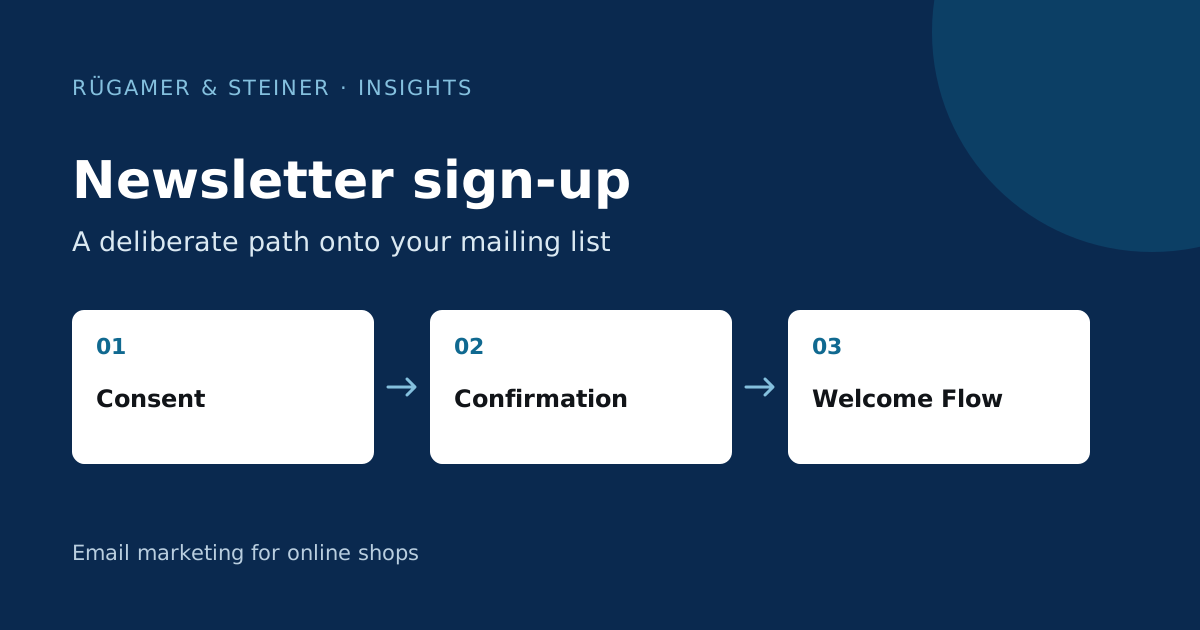
A Shopify footer form, a Klaviyo pop-up and the sign-up at checkout do not automatically follow the same data path. Register a new test address via each method and check the target list, language and status in the profile. Then check the confirmation and welcome flow. The promise made on the respective interface must be reflected in the message received.
A single order does not in itself constitute conclusive evidence of a newsletter subscription. Compare a test order with a subscription to one without a subscription. Also check an address that has previously unsubscribed. Document which statuses are transferred and whether the systems mutually overwrite any changes. Synchronisation should reflect the individual’s actual preference and not infer any additional marketing consent from general customer data.
Connect product views, checkout and orders
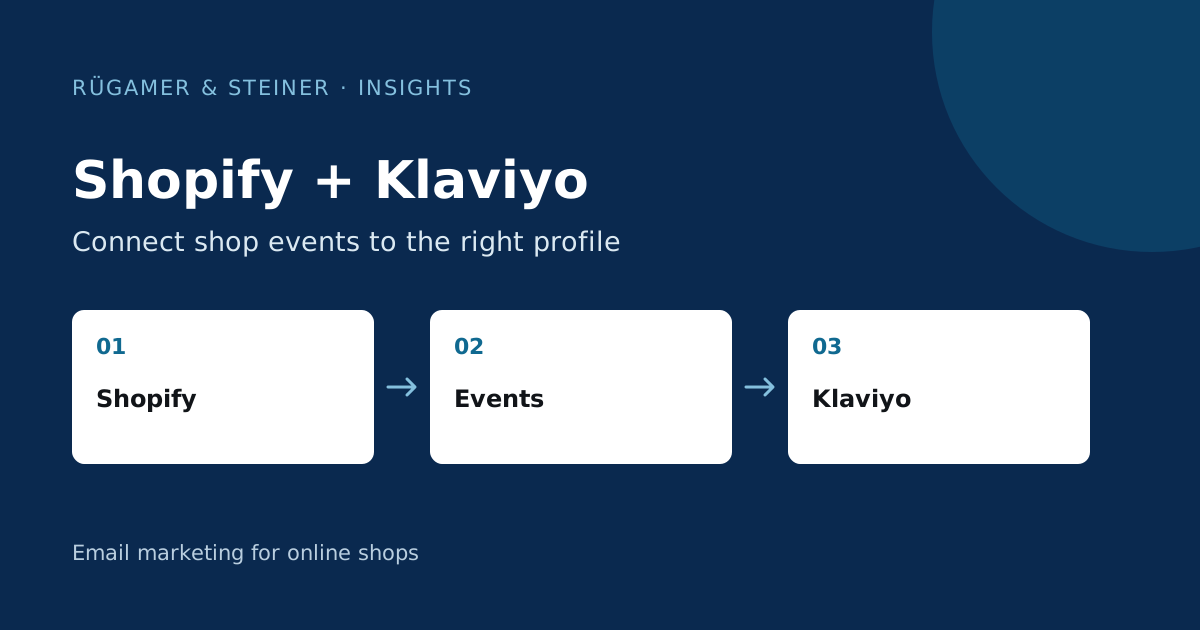
The Klaviyo overview of Shopify data explains the activities that synchronise. Create a test sequence with Viewed Product, Checkout Started and Placed Order. For each step, check the assigned profile, arrival time and relevant product data. The actual event names in the account must match the documented integration.
A sample scenario: A test user views a blue jacket in size M, adds a belt to the basket and orders both items. In the subsequent preview, variants, quantities and links must appear correctly. A test using only a standard product often fails to detect errors in product duplicates or variant data. You should therefore include mixed shopping baskets, different currencies or languages if your shop actually uses them.
Check the product catalogue and landing pages
Check not only the events, but also the catalogue for product blocks and recommendations. Do the price, currency, image and availability match those in the shop? Does a link open the correct domain and language version? The same product identifier should be traceable in both the catalogue and the event data. Otherwise, recommendations or assignments may be inappropriate.
Use a deliberately challenging test item: a long name, a variant, a reduced price and occasional stock shortages. Check how it is displayed on mobile devices and desktops. Also check what happens after a change is made in the shop and when the new information becomes visible in Klaviyo. A one-off catalogue import does not guarantee reliable updates during live operation.
Synchronise reminders between Shopify and Klaviyo
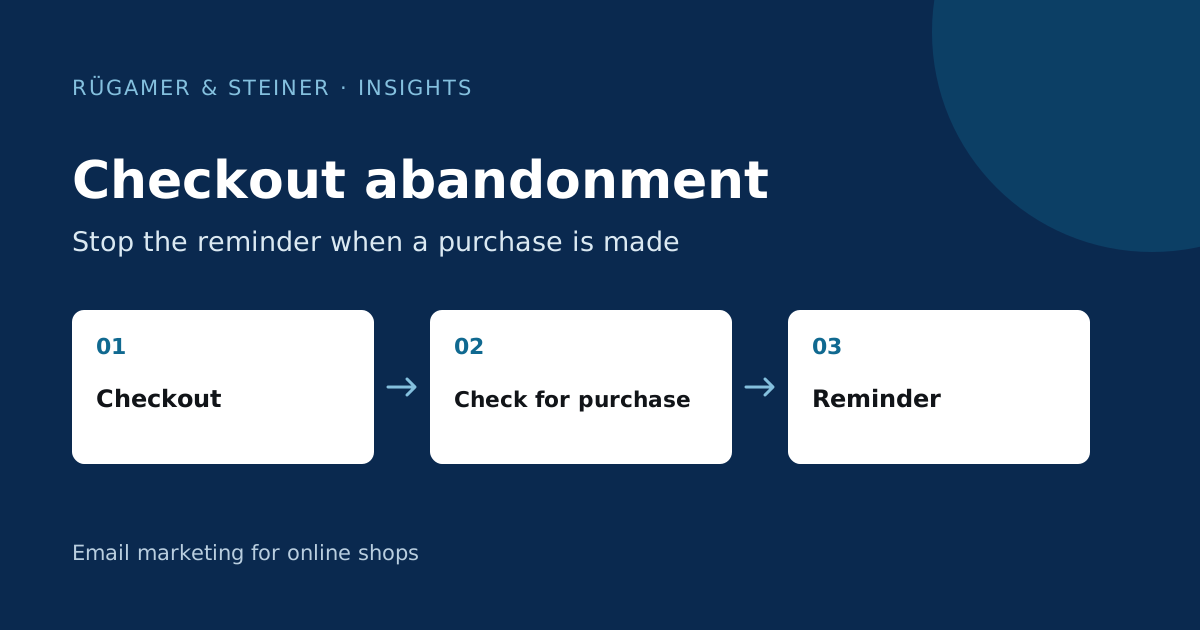
Before starting a checkout flow, check whether Shopify or other apps are already addressing the same situation. Determine which route the task will take. Simulate a checkout abandonment and a purchase prior to the scheduled reminder. The second scenario should reliably prevent the old reminder from being triggered. A flow using current product data may still send incorrect information if the order event does not arrive in time.
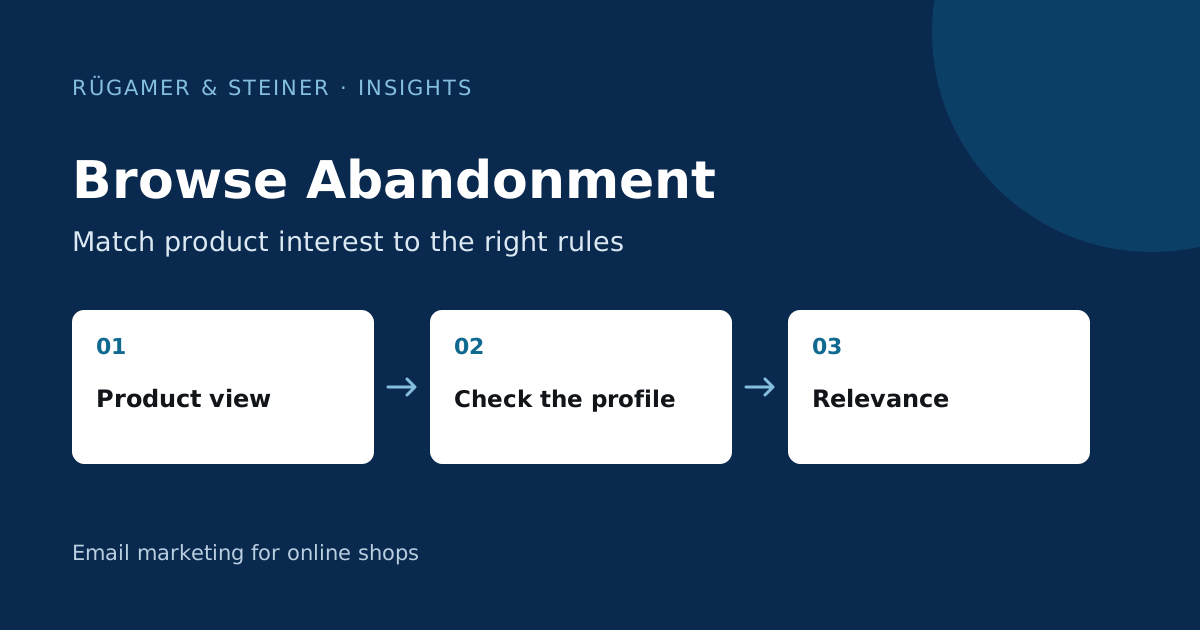
Additionally, check the transition from ‘Browse’ to ‘Checkout’. A customer should not receive a message about a previously viewed product as an open purchase prompt after placing an order. Include the existing welcome series and current campaigns in the contact plan. Technical synchronisation, correct filters and appropriate frequency must all work together; a green integration status does not confirm this combination.
A test report for the live shop
- The shop and Klaviyo account are uniquely assigned.
- The app embed and consent settings have been checked in the published theme.
- All registration methods display the expected list and status.
- Product view, checkout, order and relevant refunds are clearly traceable.
- The catalogue, variants, prices and link destinations are correct.
- The abandonment flow sends after an abandoned checkout and stops if a purchase is made in time.
Retain the log with the date and test conditions. Following theme changes, integration updates or alterations to the checkout process, re-test the affected cases. This results in a reusable acceptance test rather than a one-off approval based on the connection status.
Sources and further documentation
Product documentation and primary sources relating to the steps described. Editorial source date: 5 October 2026.